• Register
Home  //  Media  //  J! Stuff  //  News  //  Latest

The S5 Box can be demo'd by clicking on either the Login or Register buttons found towards the top of this page.

The module allows for up to 10 different S5 Box's on one page all via 10 module positions. You simply add a class to any HTML element on your site and enable the corresponding box and you are good to go!

To enable the login and register modules:

1. Install the S5 Box module and publish it to all pages on your site. Try to publish it to a position where a module already exists on all pages, but don't worry it won't change the layout of your site, the script is automatically hidden on your site.

2. Install and publish the S5 Register module to the 'register' module position

3. Publish the default Joomla login module to the 'login' module position.

4. In your template parameters area of Joomla you can change the text for login, register and logout.

5. That's it, you're all done!


The S5 Box runs off of the jQuery Javascript library in a no conflictions mode so you should not receive any problems with other third party extensions you may be running on your site. Alternatively you can also the core Joomla mootools script.

Features:

  • Powered by no conflict mode jQuery Javascript or mootools
  • Choose, elastic, fade or none for the popup effect
  • Up to 10 S5 Box's throughout your site or on any one page!
  • Set the percentage of width of each box according to overall screen size


Tutorial on how to get the s5 box working and use all 10 module positions it includes


1. Adding the S5 Box positions:

  • Open up the templateDetails.xml file included with the template you are using.
  • Locate the positions area.
  • Start adding new positions s5_box1, s5_box2, s5_box3, etc all the way up to s5_box10.

2. Adding the S5 Box classes:

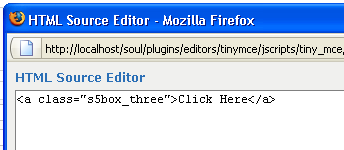
  • The S5 Box class name of the corresponding position must be added to the link that will open the box. For example the following code will display a link that says Click Here and will open the S5 Box and display whatever module is published to the s5_box3 module position:


  • These classes can be added to any element, ie: divs, spans, etc., but the common use will be to add this into content with a link similar to the one shown in the picture above. To enter this link you must do so from the HTML edit screen on your content editor:

    Once you have clicked the HTML button the HTML code window will appear much like the first image.
  • You can continue adding these classes throughout your site just be sure to have published a module to the corresponding position or the box will not work correctly. So if you add the class s5box_two you will also have to publish a module to the s5_box2 position.
  • Module positions and their corresponding classes:

    s5_box1 = s5box_one
    s5_box2 = s5box_two
    s5_box3 = s5box_three
    s5_box4 = s5box_four
    s5_box5 = s5box_five
    s5_box6 = s5box_six
    s5_box7 = s5box_seven
    s5_box8 = s5box_eight
    s5_box9 = s5box_nine
    s5_box10 = s5box_ten

3. Lastly, publish your modules to the S5 Box positions:

  • Now that you have added the s5 box positions just go to your site modules area and publish modules to those positions
  • Make sure that you have added a class to an HTML element as described above or the s5 box will have no activation button
  • Also make sure to publish the actual s5 box to a non s5 box position, perhaps publish it to the "debug" position or a similar one in your template.


Main S5 Box Module Settings:

  • In the backend of the S5 Box module you can adjust the width of each box independent of each other.
  • Make sure that the S5 Box module is published to all pages, it can be published to any template position. Also make sure that the module opening in the box is published to the page the link is on.
 

The S5 Accordion menu is demo'd on the right of this page. This version was built specifically for this template and cannot be transferred to another template. We do have another version that can be used on any Joomla template.

This module is based off the Joomla main menu system module so you can still specify which Joomla menu you want to use with the S5 Accordion menu. The menu is powered off of the Mootools Javascript library but detects to see if the library is already initialized, if so then it doesn't load its own library to stop any conflicts from arising.

I like what I see! I want to JOIN TODAY.
 

The Shape 5 CSS and JS Compressor plugin is the most revolutionary and flexible compressor plugin available for Joomla! This plugin can be used on any Joomla template. Read the full description below to see why.

The CSS and JS Compressor increases speed and performance by compressing your site's CSS and Javascript files to much smaller sizes than the original and places them in a cache folder on your server. No data is lost during this process, just simply made smaller. So what makes our's better than the rest? One word, FLEXIBILITY! Read below for a full description:


  • All other plugins force all CSS and JS to be combined into one file of JS and file of CSS. Our compressor plugin gives you the option to:
    • Only compress module files
    • Only compress component files
    • Only compress non-module and non-component files
    • Or combine any of the above
    The point is you can control what gets compressed independent of each other.
  • All other compressor plugins combine javascript files into one large file, called at the top of the page. The problem is javascript almost always needs to be called in a certain order or it will cause page errors. Calling a file at the top of the page that was originally intended to be called in a certain order will cause unwanted results. So we've fixed this and given you three options:
    • Call the compressed javascript at the top of the page in a combined file
    • Call the compressed javascript at the bottom of the page in a combined file
    • Call the compressed javascript in their original locations as individual files
    The first two ways will generate three files (module js, component js, and other js files) and will create less calls to your server. However, we HIGHLY recommend the use of the third option. This option will generate the same amount of calls to your server as without the plugin but will still compress your javascript to a much smaller size all while still being called in the original location to avoid script errors, in other words less download time for your viewers and no script errors!
  • Need to exclude certain files? Not a problem! This plugin will allow you to specify certain file names to be excluded from compression despite any previous settings.
  • Specify in the backend how long you want your cache to stay on your server. After the time has completed a new cached version of your files will be created.
  • Eliminate unwanted white space in your files be enabling CSS Optimization. This feature will remove any un-used white space to reduce the size of each CSS file.

Note: Because this plugin uses cached versions of your javascript and css this plugin should not be used while developing your site and should only be enabled after you have completed your site.

Gzip must be installed on your server and enabled in PHP in order to function.

See This Plugin in Action!

Without the Shape 5 CSS and JS Compressor Enabled:
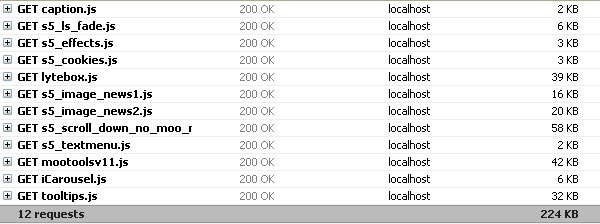
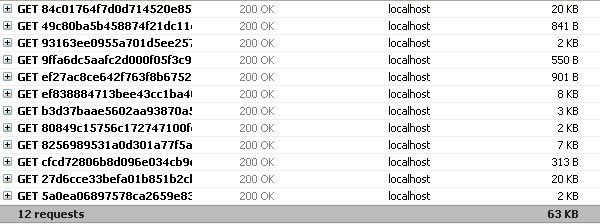
With the Shape 5 CSS and JS Compressor Enabled a 72% DECREASE IN DOWNLOAD SIZE!


I like what I see! I want to JOIN TODAY.
 

The S5 Image Slide module can be viewed at the top of this page. This module allows for up to 10 images at one time and includes navigation arrows, play/pause buttons and preview images of each slide. The S5 Image Slide is running off of the jQuery Javascript library in a no conflictions mode so you should not receive any problems with other third party extensions you may be running on your site.

Features:


  • Powered by no conflict mode jQuery Javascript
  • Choose from several effects
  • Up to 10 images
  • Choose auto rotate or manual rotate
  • Show/Hide: thumbnails, navigation arrows and pause/play buttons
  • Set links to each image and define if they show in a new window or in the same
  • Set the width and height of the module

Tutorial:


After installing the module simply publish it to your site and add URLs to images located on your server. As you can see from the below screenshot you need to enter the URLs to the images, once this is done the fader will start cycling through the images, be sure to add them in order from 1 - 10.


I like what I see! I want to JOIN TODAY.
 
The S5 Live Search module is demo'd towards the top of this page and can be used on any Joomla template.

Allow your users to search quickly and without loading or refreshing pages with our amazing ajax search module! Simply publish the module to the 'search' position.


I like what I see! I want to JOIN TODAY.
 

Demo Information

All content and images shown on this site is for demo, presentation purposes only. Stock photos are NOT included. This site is intended to exemplify a live website and does not make any claim of any kind to the validity of non-Shape5 content, articles, images or posts published to this site.

6399 North Wells Road
Bigtownville, CO, USA 12345

Phone: 800-123-4567
Email: This e-mail address is being protected from spambots. You need JavaScript enabled to view it.
Web: www.shape5.com/demo
Scroll Up